
Make sense of image formats
HEIC, JPEG or PNG: which image format should you keep?
A folder containing HEIC photos, JPEG exports and PNG screenshots is not necessarily disorganized. Different formats serve different jobs. Keep the original you trust, then choose a delivery format for the person or app receiving the image. Converting an entire library is rarely the best first step.
HEIC: useful for an Apple photo workflow
HEIF is the high-efficiency photo format discussed in Apple’s documentation, and HEIC is a common extension you will encounter for these images. Apple explains that HEIF can use less storage than JPEG at similar visual quality, with built-in support beginning in macOS High Sierra. That does not mean every receiving app accepts it. See Apple’s HEIF and HEVC guide for compatibility details.
If your phone photo opens correctly and your editing workflow accepts it, keep that original. Make a separate JPEG when an upload form, client or older tool requires one. This lets you solve the compatibility problem without treating a delivery copy as a replacement for your source. Test an actual export before processing a large batch.
JPEG: a practical delivery format for photographs
JPEG uses lossy compression: its smaller output can discard image information. The MDN JPEG reference describes the format’s compression model. For an ordinary photographic delivery, compare the exported file at the size it will actually be viewed instead of choosing a quality setting solely because it produces the smallest number.
Look at faces, fine texture and smooth areas such as skies. Keep your source file and create a fresh delivery export when requirements change. A small JPEG can be an entirely appropriate attachment; it simply should not become the only remaining source for every future use. Name the output clearly, such as a project name followed by delivery, so its role remains obvious months later.
PNG: choose it when edges or transparency matter
PNG uses lossless compression, as explained in MDN’s PNG reference. It also supports alpha transparency, while standard JPEG does not. MDN’s image-format guide recommends considering PNG for screenshots, diagrams and line art where precise reproduction matters.
For a screenshot with small text, compare the letters and thin dividers after export. For a cutout or logo, place the exported image against both a light and a dark background. That check can reveal an accidental solid background or an unwanted edge that was hard to see in the editing canvas. Decide based on the intended use rather than the extension alone.
Export a compatible copy with Preview
Open a supported image in Apple’s Preview app, choose File → Export, and select an available format. Preview offers additional settings for some formats, including JPEG quality. Choose a new filename or destination before saving. Apple documents the steps and available options in Convert image file types using Preview.
After exporting, reopen the new file in the app or service that needs it. Check dimensions, orientation, visible detail and any required transparency. If the recipient specifies a maximum size, inspect the actual output size after saving. Keep the original until you have confirmed the result and have a clear reason to remove it.
Keep source, working and delivery files understandable
A simple folder arrangement can prevent unnecessary conversions: one place for camera or supplied originals, one for working documents, and one for approved delivery exports. You do not need an elaborate naming system. Consistent project names and a clear destination are usually more useful than adding final-final to every export.
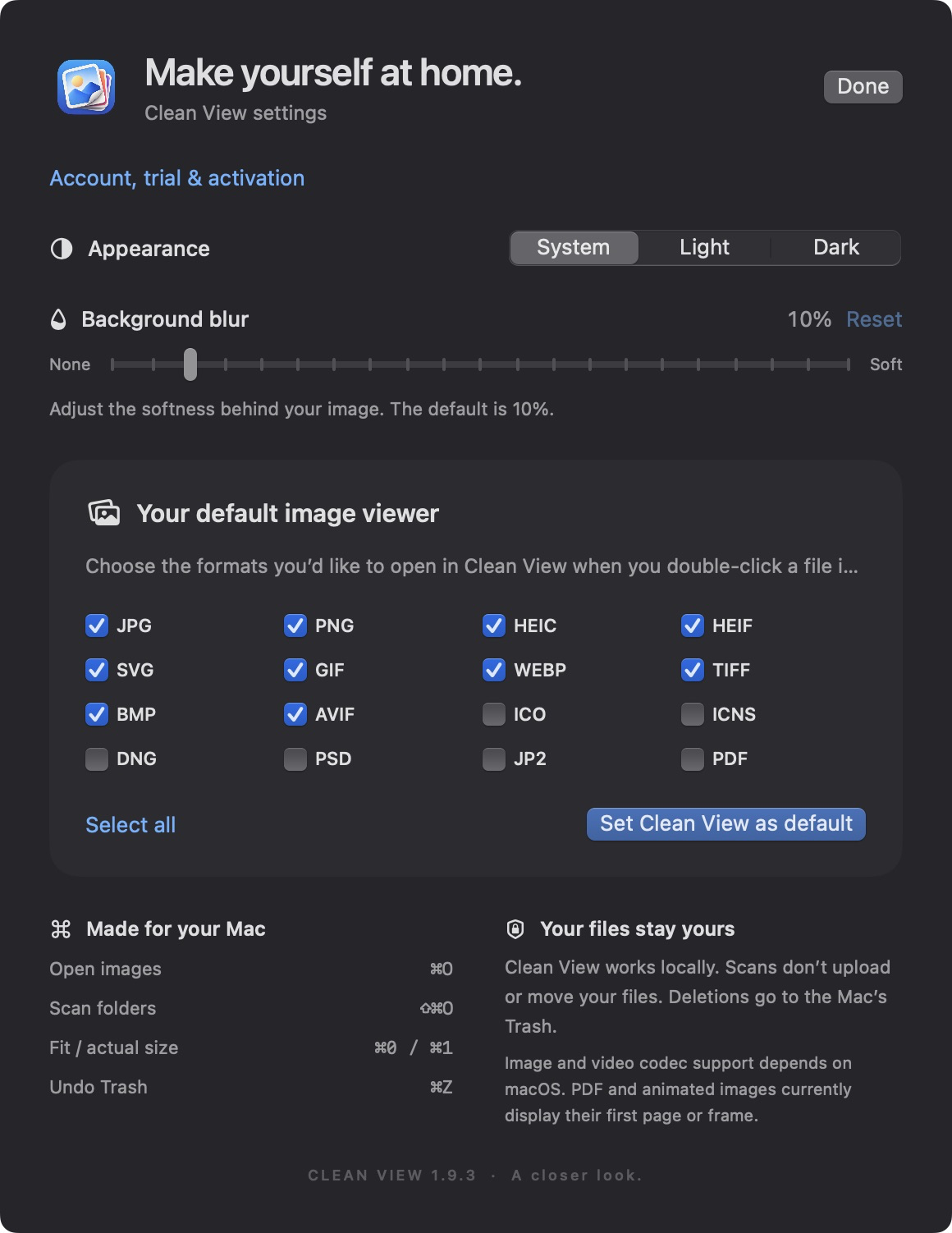
In Clean View, you can browse supported HEIC, JPEG and PNG files together, inspect dimensions and file size, and sort a scanned folder by size or format. Its Add to Folder action saves a copy and leaves the original in place. It is a viewing and organization workflow, not an image-conversion feature; use Preview or your editing app to generate a different format.
Two mistakes to avoid when cleaning up
Do not assume two similar thumbnails are interchangeable. An original HEIC and a JPEG export can look alike while serving different purposes. Compare their role in the project before deleting either. Clean View’s exact-duplicate check compares file contents, so a different encoding is not automatically grouped with the source photograph.
Do not judge original pixel quality solely from a fitted preview. Clean View 1.9.3 uses an optimized viewing image capped at 4,096 pixels on its longest edge, while keeping the original dimensions in information. Use your editing application for full-resolution checks beyond that limit. For safe removal of repeated files, follow the exact-duplicate cleanup guide.
Sources & further reading
Primary references checked for this guide. App-specific details describe Clean View 1.10.3.
A NATIVE MAC VIEWER
Try it with your own library.
Open, zoom and browse with Clean View. Your local files stay on your Mac. Try it free for 100 days. Launch price: $7 for the first 100 buyers, then $20 one-time.
Download Clean View