Make room with a closer look
How to find and remove large files on Mac, with a preview first
A large file is not automatically an unwanted file. Start with the biggest items, open them, and decide what is worth keeping before you remove anything. This guide takes you from a storage overview to a careful media cleanup.
Start with an overview of your Mac’s storage
On macOS 13 or later, open System Settings, choose General, then Storage. This is the place to check overall capacity and which categories are using it. Apple’s storage guide explains the built-in overview.
Clean View answers a narrower question: which supported media files in your scanned locations are taking up space? Its library total is not a replacement for the Mac’s full storage report. Applications, system data and unscanned locations can account for space that does not appear in this library.
Scan the locations you actually want to review
Open Clean View and choose Scan. Use Scan Folders for a specific Downloads folder, export folder or connected drive. Scan Entire Computer covers accessible locations in your home folder, the Shared folder and connected external drives; it skips hidden locations, app packages and system files. A permission prompt or an unavailable drive can limit the results.
Scanning records file locations and sizes in a local index. It does not create a second copy of every photo. Your library is saved for the next launch, and watched locations can refresh as their contents change. If an external drive is disconnected, reconnect it before trying to inspect or remove its files.
Use Large files and sort largest first
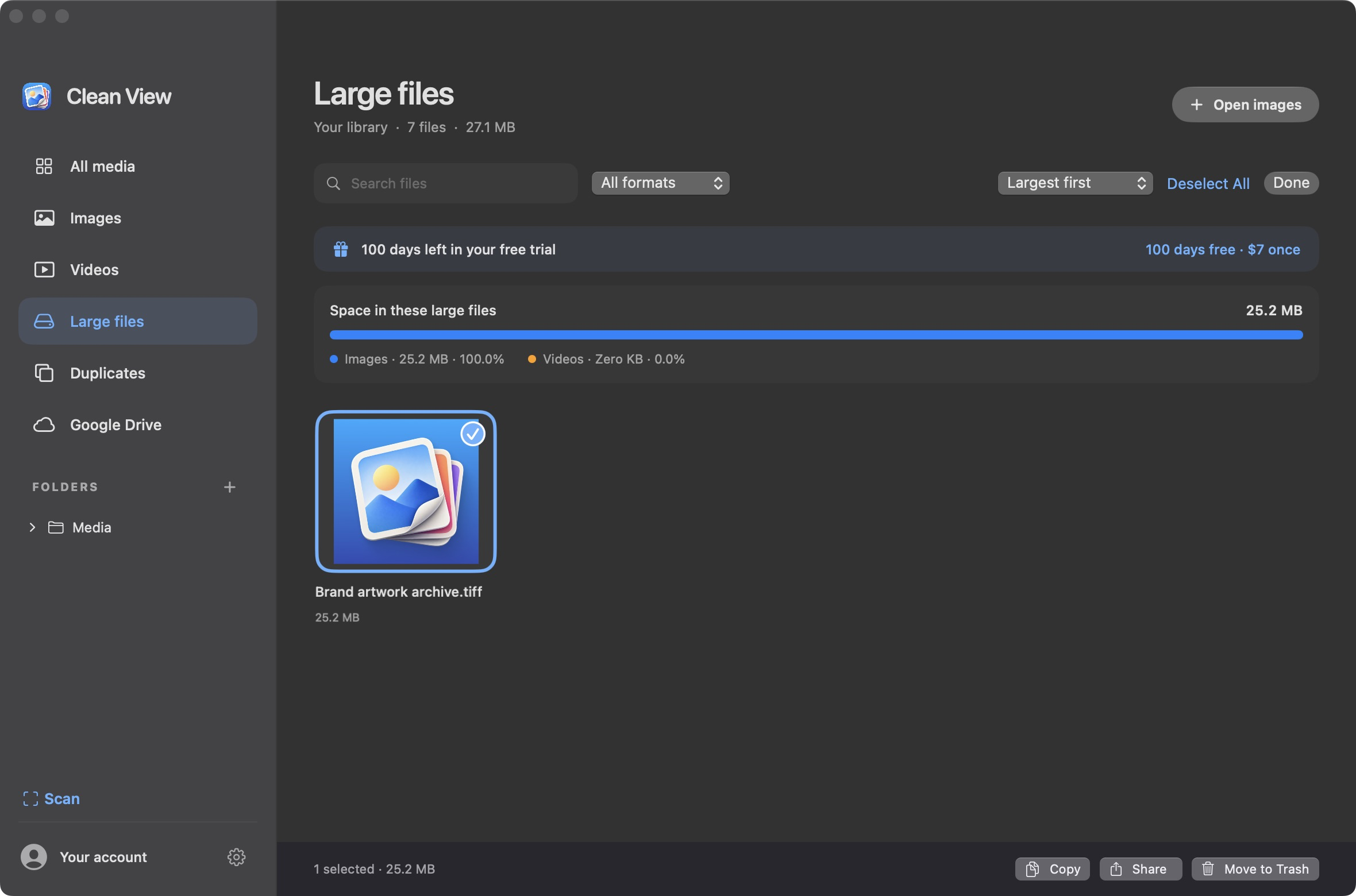
Choose Large files in the sidebar. This view includes supported scanned files of at least 10 MB. Choose Largest first to put the biggest candidates at the top. The colored storage summary separates images, videos and documents in the current view; the labels explain the categories without relying on color alone.
Treat those totals as file sizes, not guaranteed recoverable disk capacity. A file can use different physical space because of shared storage, compression or snapshots. Apple’s APFS overview explains why a clone may share underlying data with another file.
Preview before selecting a batch
Open a candidate and use the arrow keys to review nearby files. Information shows the file’s name, type, size and location. Show in Finder helps you confirm which project or folder it belongs to. For example, a large finished export may still be essential even when a smaller version exists elsewhere.
Return to the library, choose Select, and mark the files you have decided to remove. You can also use Copy or Share on a selection. Sharing hands the chosen files to macOS; it does not remove them from your original folder. The sharing guide explains the difference between sharing a file, copying its image and copying only its name.
Move to Trash, then review the outcome
Choose Move to Trash and read the confirmation before accepting it. Clean View uses the Mac’s Trash and provides Undo Move to Trash. Review the remaining grid before continuing. You do not need to permanently erase files as part of the first review.
Apple notes that files placed in Trash still occupy storage until Trash is emptied. See Free up storage space on Mac. Emptying Trash is a separate, permanent step; Clean View does not perform it for you. Only take that step when you have finished checking what you removed.
Use exact duplicates for a different kind of cleanup
Size sorting and duplicate detection solve different problems. Large files puts the biggest items in front of you. Duplicates compares contents and groups byte-for-byte matches, even when their names differ. A smaller copy with a different crop or compression is not an exact duplicate.
For identical files, use Select Extra Copies in Duplicates to preserve a verified keeper. For unique large files, you make the decision. Combining the two views gives you a practical review sequence without treating every big file as disposable.
Sources & further reading
Primary references checked for this guide. App-specific details describe Clean View 1.10.3.
A NATIVE MAC VIEWER
Try it with your own library.
Open, zoom and browse with Clean View. Your local files stay on your Mac. Try it free for 100 days. Launch price: $7 for the first 100 buyers, then $20 one-time.
Download Clean View